Touching does nothing. Why?
Usually the Accessibility permission: the picture and the controls are separate permissions on your Mac. Here's the fix.
 Wing Display
Touch · Android tablet · Mac
Most of us have done it: reached out to flick a page on a Mac's screen, then remembered it isn't a touchscreen. With Wing Display Pro, the screen beside your Mac is one. Here's what a finger is genuinely good at, and how to make the most of it.
When researchers at MERL and the University of Toronto compared fingers and a mouse on a touch table (CHI 2007, 12 people), one-handed tasks came out even: fingers picked things up just as fast, but missed about twice as often. With both hands at work, touch clearly won.
So touch isn't a better mouse, it's a different tool: great for grabbing a window, scrolling or zooming a photo, less good for a tiny close button. Keep the trackpad for those.
Apple's own design guidelines give iPad controls a default size of 44 by 44 points, and Mac controls 28 by 28, because a Mac expects a cursor. And it's not that fingers are "fat": a study at the Hasso Plattner Institute found people aim with the top of the finger, while screens assume the middle of the pad.
The easy fix: in System Settings → Displays, give the tablet's display a larger-text resolution. Everything on it grows under your finger.
Touching an upright monitor all day is tiring. In a 2011 study in the journal Ergonomics, 24 people using a touchscreen on a desk reported more shoulder, neck and finger discomfort than with a keyboard and mouse, and pulled the screen closer and lower. A tablet already lives there: flat or tilted on the desk, right beside your keyboard.
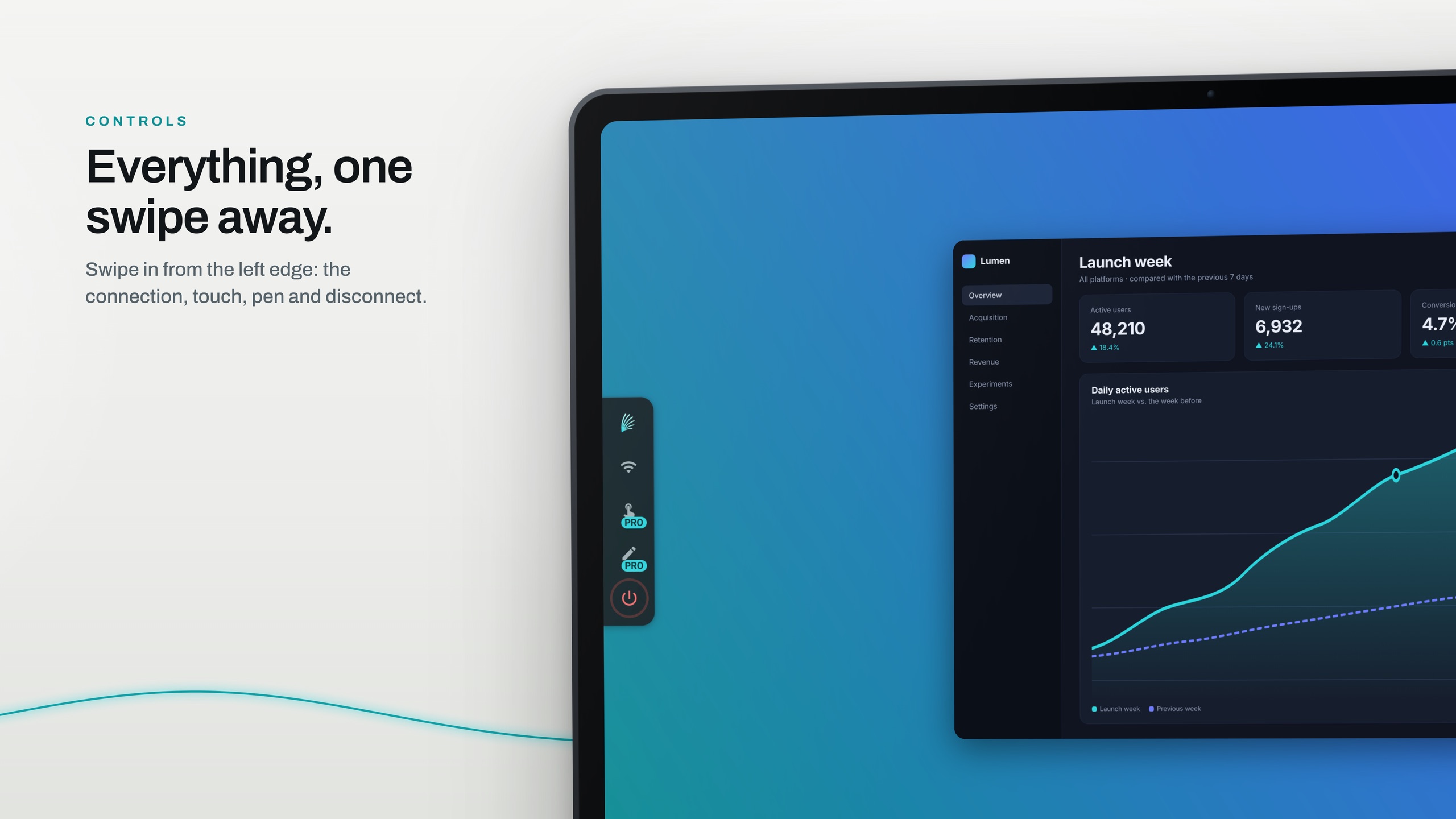
Swipe in from the left edge for Wing Display's controls, where you can turn touch off. Typing stays on your Mac's keyboard: the tablet sends touches and the pen, not keys.
Download Wing Display for Mac, click Start, then install the tablet app and tap Connect.
Subscribe in the tablet app. Without it, the tablet tells you "Touch and pen control are part of Pro."
Allow Wing Display in System Settings → Privacy & Security → Accessibility; the Mac app's Open Accessibility Settings… button goes straight there.
Touch comes with Pro, along with the pen and the USB connection: $2.99 a month or $24.99 a year in US dollars, through Google Play, with 14 days free for first-time subscribers. The second screen itself is free to use over Wi-Fi. Compare the plans.
Usually the Accessibility permission: the picture and the controls are separate permissions on your Mac. Here's the fix.
Yes, with Pro. Draw on your Mac with your tablet's pen covers pressure, tilt, hover and palm rejection.
Download Wing Display for Mac, then install the Android tablet app. First-time subscribers can try Pro free for 14 days.
Sources are linked in the text. Samsung, Galaxy and Galaxy Tab are trademarks of Samsung Electronics Co., Ltd. Android and Google Play are trademarks of Google LLC. Mac, iPad and macOS are trademarks of Apple Inc. Wing Display is not affiliated with or endorsed by any of them.